|
JSON (JavaScript Object Notation) is a simple text format for storing and exchanging data. Values can be arranged in objects and arrays. In addition to numbers and strings, it supports Boolean values and null. The notation is readable, compact and independent of any programming language. Thanks to its widespread support, we can easily process the same data in a web application, an enterprise system or a simple utility program.
In Control Web 9, JSON is supported at several levels. When we need to exchange current variable values, we can use data section procedures directly. The json instrument is available for working with general document structures. And when data needs to be available to other applications over a network, we can use the web_server instrument. Application developers can therefore choose the approach that best suits the task.
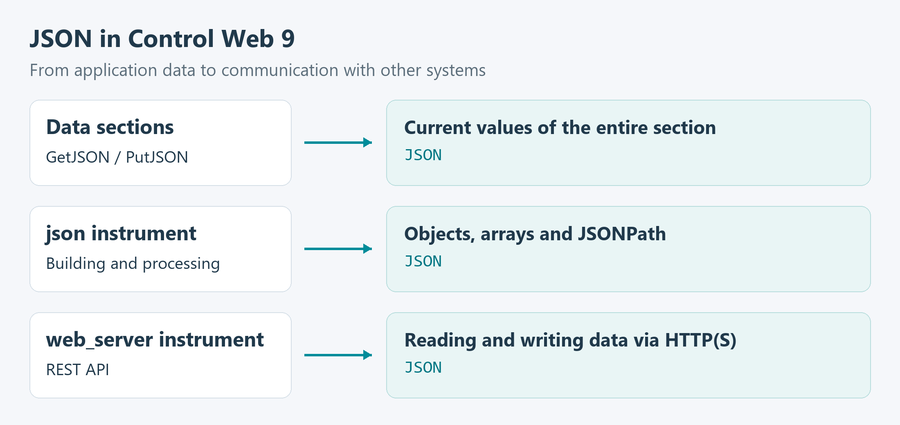
JSON support in data sections, the json instrument and the web server. A data section as JSON
Every data section has a GetJSON procedure that returns the names of its data elements and their current values as a JSON string. There is no need to convert individual values to text and assemble the resulting string step by step. If we add another variable to the section, it is automatically included in the generated document.
Let us look at a simple example. Our application contains a data section called process_data, with information about the temperature, whether the equipment is running and the number of items produced:
var process_data;
  temperature : real;
  running : boolean;
  item_count : longint;
end_var;
If the current values of these variables are 72.5, true and 1250, we can retrieve them with a single call. In the following example, json_text is a variable of type string:
json_text = process_data.GetJSON();
The resulting object will contain the following values (whitespace and the formatting of decimal numbers may vary):
{
  "temperature": 72.5,
  "running": true,
  "item_count": 1250
}
Arrays of data elements are converted in the same way. The exceptions are elements of type data and instrument, which are omitted during generation. The GetJSON(Encoding) variant is also available when text needs to be passed in a specific encoding. For example, process_data.GetJSON(65001) returns a bytestring encoded as UTF-8.
Conversion also works in the opposite direction. The PutJSON procedure writes the received values to the corresponding elements of the section. We do not have to include every variable. If we only need to change one value, an object with a single item is enough. The error_message variable is of type string:
if not process_data.PutJSON( '{"item_count": 0}', error_message ) then
  system.DebugOutput( error_message );
end;
We can use this, for example, to load settings or reset a counter when a new production batch starts. The procedure checks that the elements exist and that the data types are compatible. If a value cannot be written, it returns false and details are displayed in the Message Window. Other valid items are still written, so a failure does not automatically restore the original values.
The json instrument
The structure of data received from another system may not match the data sections in our application. A document may contain nested objects, arrays of measurements or other information from which we only need to select a few values. The json instrument is designed for these situations. It is an invisible instrument operated through native procedures.
We can load a document from a file using ReadJSONFile, from a string using SetJSONString or from a data element of type data using SetJSONData. The syntax is checked during loading. The root element must be an object or an array.
If we know the document structure, we can retrieve values using a JSONPath expression. The path starts with a dot and continues with the names of individual items. For an array, we specify the index in square brackets; the first element has index zero.
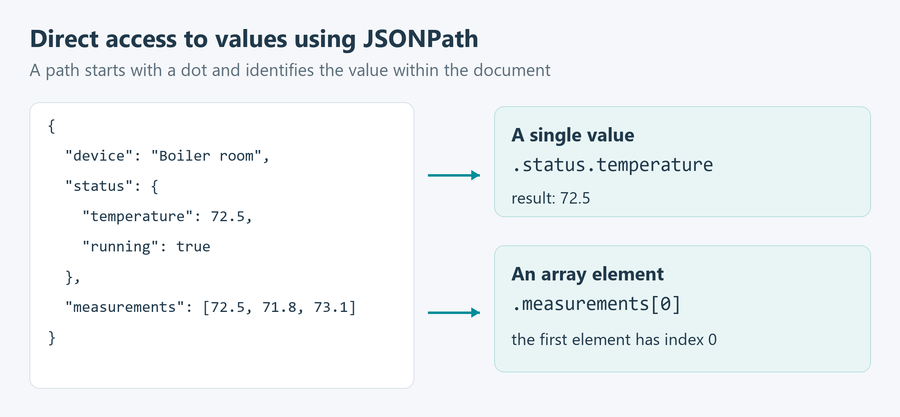
A path lets us select a value directly from a nested object or array. For the document shown in the figure, we can read the temperature using the following code. The instrument is named j, the received_text variable contains the JSON, error_message is a string and temperature is of type real:
if j.SetJSONString( received_text, error_message ) then
  if j.GetPathReal( '.status.temperature', temperature ) then
    system.DebugOutput( 'Temperature', temperature );
  end;
else
  system.DebugOutput( error_message );
end;
In addition to reading individual values, procedures are available for retrieving an entire array, such as GetPathArrayReal. If we do not know the structure in advance, we can traverse the document step by step, determine item types and enter individual objects and arrays.
The instrument also allows us to create new documents. The Clear procedure prepares an empty object, to which we add items of the required types. In the following example, we create a message about a piece of equipment:
j.Clear();
j.AddString( 'device', 'Boiler room' );
j.AddRecord( 'status' );
j.AddReal( 'temperature', 72.5 );
j.AddBoolean( 'running', true );
j.LevelUp();
j.GetJSONString( json_text, true );
Calling AddRecord creates a nested object, and subsequent items are inserted into it. The LevelUp procedure takes us back up one level. The result is the following text:
{"device":"Boiler room","status":{"temperature":72.5,"running":true}}
The true argument in GetJSONString enables compact output without formatting spaces or line breaks. For a readable display during debugging, we can use false. The completed document can also be saved to a file using WriteJSONFile. We can therefore use the same instrument to receive data, modify it and prepare messages for another system.
JSON in the web server
In addition to serving web pages, the web_server instrument provides direct access to application data through a REST API. Another application can use a standard HTTP request to read current values or write new ones. Data is transferred in JSON format. Making a data section available therefore requires no custom code to handle individual requests.
The section must be global, have its section_name specified and be listed in the sections subsection of the rest_api section in the web server parameters. We can configure everything directly in the instrument inspector.
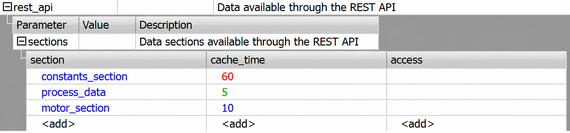
Configuring the data sections available through the REST API in the web_server instrument inspector. Each section made available in this way has an address of the form /api/sections/section_name. We use the GET method to read data. If we have made the process_data section available, we can read its values using a tool such as cURL:
curl.exe http://localhost/api/sections/process_data
The response is a JSON object containing the current values of the data elements, just as in the GetJSON example. The localhost address in the example assumes that the client and server are running on the same computer and that the server uses the standard HTTP port, 80.
To write data, we use the POST method and send an object containing the new values in the request body. The Content-Type header must be set to application/json. The following example is intended for the Windows command prompt, cmd.exe:
curl.exe -X POST -H "Content-Type: application/json" -d "{\"item_count\":0}" http://localhost/api/sections/process_data
The server returns the result of the operation as JSON again:
{"result":true,"error":""}
Here, too, we only need to send the items being changed. If one of several items cannot be written, the server reports an error, but the other valid values remain written.
If web user login is enabled, the client first logs in by sending a POST request to /api/login. It then includes the returned token in subsequent requests using the Authorization: Bearer token header. For secure data transfer, we can use the HTTPS support built into the web server.
In addition to the built-in REST API, we can process our own JSON messages. The OnPostJSON event procedure is available when data is sent using POST with the application/json content type. We can pass the received Data parameter to the json instrument using SetJSONData and process it further to suit the application.
JSON support in Control Web 9 makes it easier to connect an industrial application to the outside world. For routine exchange of values, a data section procedure or the web server configuration is all we need. More complex structures can be processed using the json instrument. Measurement, process control and data exchange can all be developed in a single environment.
| 